How to onboard your whole doctor panel in an afternoon
Abstract
Import your entire doctor panel from one spreadsheet, let new doctor users create their own profile, and know the two rules that catch most hospitals out.Most problems with consultants do not start at the billing counter. They start in the doctor master — the list that decides who can be picked as the consultant on an OPD bill, whose name and qualification print on it, and which clinicians can be registered with ABDM.
That list is usually built the slow way: one doctor at a time, in a form, by whoever happens to be free. For a forty-doctor panel that is an afternoon gone, and a quiet source of duplicates.
This guide covers the faster sequence: build the sheet, upload it once, and let new users create their own doctor records as they join.
What the doctor master actually controls
Three things at once:
- Consultant lists — OPD registration, appointments, service requests and counter sales all pick from this list.
- Printing — the consultant name and qualification on the bill and case sheet.
- ABDM — a doctor needs a Practitioner record in the ABDM directory before they can act as the treating clinician.
Get the master wrong and all three are wrong at the same time.
1. Build the sheet, not the form
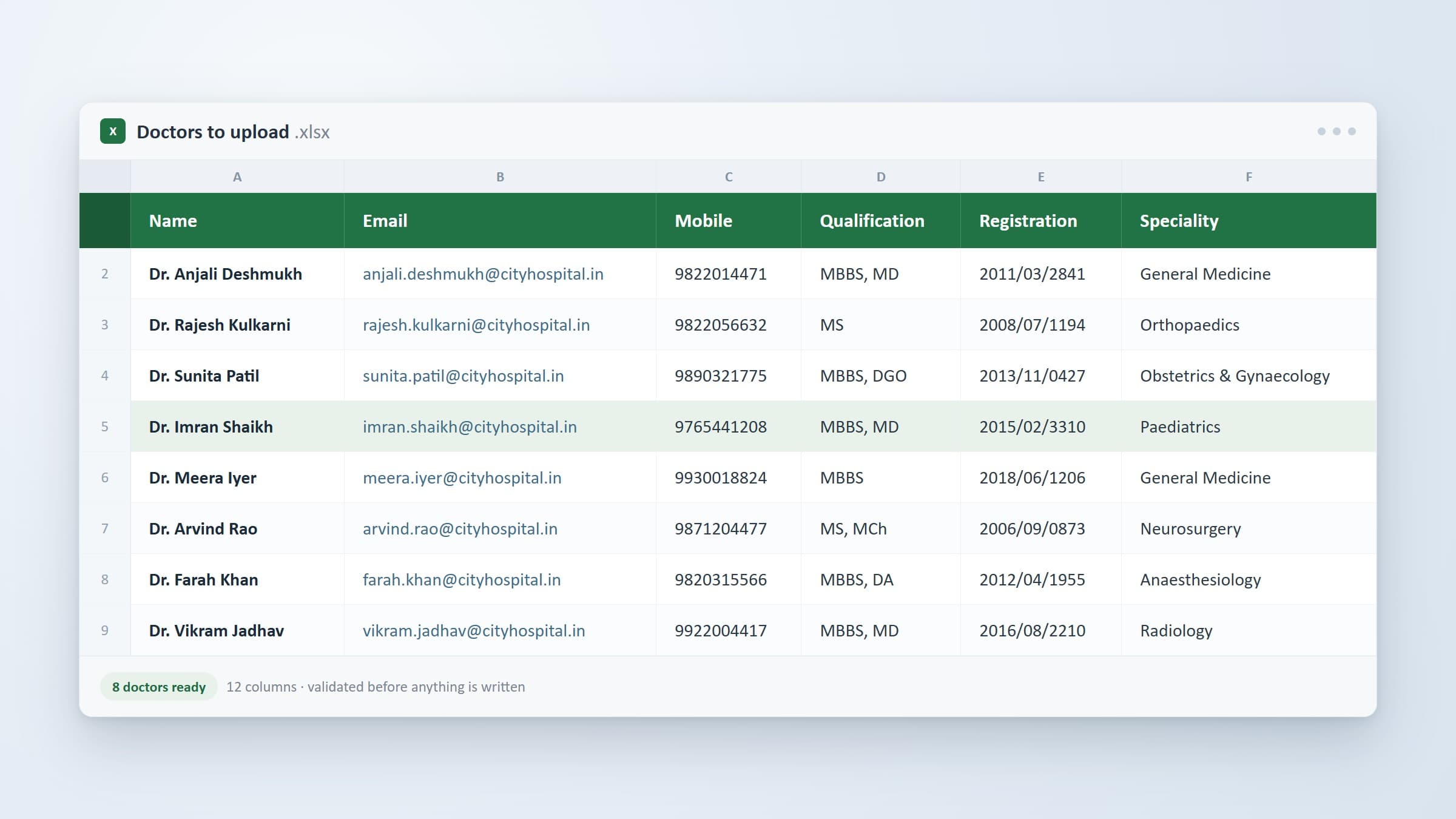
Bulk upload lives on the Bulk Upload Doctors page, in the Doctors section of the admin panel (administrators on paid plans). The page offers a header-only template you can download.
The upload reads .xlsx, .xls or .csv. Headers are matched by name — trimmed and case-insensitive — so extra columns you leave in the sheet are ignored, and the column order does not matter.
| Column | Required | Notes |
|---|---|---|
| Name | Yes | Full name — first and last. Letters, digits, spaces, dots and @ only. |
| Yes | Becomes the doctor's login. Must not already belong to a user. | |
| Mobile | Yes | Carried onto the doctor's consignee account. |
| Qualification | Yes | Free text, up to 255 characters — MBBS, MS, MD, DM as you would print them. |
| Registration | Yes | Medical council registration number. Unique within your hospital. |
| Speciality | No | Defaults to Allopathy. |
| Type | No | On Panel, Visiting or Inactive. Defaults to On Panel. |
| Gender | No | Male, Female, Other or Unknown. Defaults to Unknown. |
| NDHM Professional ID | No | Only if the doctor is already in the ABDM professional registry. |
| PAN | No | |
| Aadhaar | No | |
| Teleconsultation Fee | No | A number between 0 and 100000. Defaults to ₹200. |
A few details worth knowing before anyone types:
- A leading "Dr" is stripped and added back once, so
Dr. A. SharmaandA. Sharmado not becomeDr. Dr. A. Sharma. - Registration is the field ABDM depends on. A missing or duplicated council number is the most common reason an ABDM registration cannot complete.
- One file carries up to 100 doctors. Larger sheets are rejected outright rather than cut short, so split a big panel into two uploads.
2. Understand the duplicate rules before the first upload
This is where most imports fail, and both failures are deliberate.
Email. Every doctor gets a login, so the address must be unused. If it already belongs to a user of your hospital, the row is refused with create this doctor from the Users list instead — that person already exists, and a second record would split their visit history. If it belongs to a user at another hospital, it is refused as well.
Registration. The same council number cannot appear twice in your hospital. The error names the doctor already holding it, which is worth reading carefully — it is usually a duplicate that predates the import.
Validation is all-or-nothing. Every row is checked before anything is written, and if one row is wrong nothing at all is imported — not the good rows either. You get a table of Row, Doctor, Column, Value and Reason, plus a Download errors as CSV button. The row numbers are spreadsheet rows, so you can go straight to the line that failed.
3. Choose whether the doctors can sign in
The page asks for a Login state, and the choice matters more than it looks:
- Inactive — no plan seat used. The doctor is created and fully usable as a consultant, but cannot log in and does not consume a user seat. This is the recommended default.
- Active — each doctor can sign in. Seats are checked for the whole batch before anything is written, so you never half-import a panel and then discover you ran out.
Most hospitals import the whole panel inactive, then activate the handful who actually use the system. Imported logins are created with a generated password, so a doctor who is activated signs in with their email and Forgot Password.
4. Read the result panel properly
After a successful upload the page reports three things.
How many were imported — with confirmation that they can now be chosen as the consultant on an invoice, in appointments and in counter sales.
How many are registered with ABDM — Practitioner registration starts as soon as the import finishes, but it is one call per doctor, so it runs against a time budget. Any that do not finish are listed by name with a Finish pending button. Those doctors can be billed immediately; only the ABDM directory is waiting.
A note on inactive logins, if that is what you chose.
A partial ABDM sync is not an import failure. The doctor exists and billing works.
5. Doctors that appear on their own
The second path is for staff added one at a time, and it removes a common nuisance: creating the user, then going to another screen to create the doctor.
When a user is created with the role doctor, Nice HMS asks for the doctor details on the same form — gender, qualification, speciality and registration — and creates the doctor record as part of that single save. The doctors screen is never visited.
It fills in what it can from the user: name and mobile number. Type is set to On Panel, and a consignee account is created for the doctor at the same time, so payments and receipts to that consultant have somewhere to land.
If the doctor profile cannot be created, the user is still saved and the screen says so — you do not lose the login over it.
One thing to know
The doctor profile is created once. After that the doctor record is the source of truth, not the user.
Two places where this shows up:
- Renaming or re-qualifying a doctor. Make the change on the doctor record. Editing the user's name does not follow through to the consultant list or to the printed bill.
- Taking a doctor off the consultant list. Set the doctor's Type to Inactive. Disabling their login will not remove them, and that is deliberate — imports create logins as inactive by default, so a consultant list filtered on login status would be empty the moment a bulk upload finished.
Consultant lists filter on the doctor record's own Type. Remember that one rule and both cases resolve.
Frequently asked questions
Can I update a doctor by re-uploading the sheet?
No. The upload only creates doctors. If the email or the registration already exists, the row is refused rather than merged, so a second upload can never quietly overwrite a name or a qualification. Change an existing doctor on the doctor record.
What happens if one row in the file is wrong?
Nothing is imported — not the correct rows either. You get an error list with the spreadsheet row number and the reason, and you fix the file before re-uploading.
How many doctors can I add at once?
Up to 100 per file. A larger sheet is rejected rather than truncated, so split a bigger panel into two uploads.
Do imported doctors count against my plan?
Only if you import them as Active logins. Importing inactive uses no seats, so a hospital can build its full consultant list first and activate logins as they roll out.
A panel you can trust
Most of the work happens before the upload: clean names, one row per doctor, and a unique council registration for each. Do that once and a forty-doctor panel takes minutes — and every bill, appointment and ABDM record built on top of it starts from a clean base.
Already on Nice HMS? Open Admin → Doctors → Bulk Upload Doctors, download the template, and try five rows before you run the whole panel.
Not on Nice HMS yet? See what the plans include on our pricing page, or write to us at admin@nicehms.com for a walkthrough.
Hospital software updates, by email
What changes in Indian hospital software: new Nice HMS releases, ABDM/NHCX and PMJAY updates, and practical notes on running a hospital — a few emails a month. Unsubscribe in one click.

Dr Umesh Bilagi
Founder CEO of Nice HMS, reshaping healthcare management. MD DM in cardiology, with 2 private hospital launches and impactful government tenure. Fusing medical expertise and tech for superior care is my mission.
Related reading
- How to build a clean pharmacy item masterA practical guide to pharmacy item masters: naming, units, GST, batches and opening stock — and importing up to 5,000 items from one spreadsheet instead of typing them one by one.
This Unlock the Future of Healthcare Management! 🚀🏥🌟
Is managing your hospital, clinic, or lab becoming a daunting task? Experience the ease and efficiency of our cutting-edge Management Software through a personalized demo.